
So, you need to move a page, but you're not sure on the how. That's where this quick guide comes in. Unfortunately, we don't have a reliable auto mover tool, and all wicks will need to be changed by hand anyway. Regardless of why a page is being moved, most of the procedure is the same regardless of whether it's a rename, a Namespace migration, or a Trope Transplant.
If what you want to move is a trope, you won't be able to move it yourself. You need to inform a moderator to move it for you. Don't forget to tell where to move which page to.
If you want to rename a trope, see our Trope Renaming Guidelines. If the page is very long and you'd prefer to split it, see How to Split a Page for other options.
If you're moving a Main redirect for a work to a redirect in the proper namespace for the work, Cut List the Main redirect once all its wicks have been handled.
If you want a page to be moved by the page mover in order to preserve page history, you can make a request on this thread on the FAQs section. A mod will eventually move the page for you. However, you still need to move the wicks and indexes yourself.
For the bulk of this demonstration, we will be moving a page for the German film Er ist wieder da to its English title, Look Who's Back.
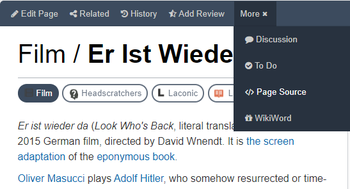
To open the new, unmade, page either modify the url or create a link in the Sandbox that you can click. In this case, the link would be Film/LookWhosBack which will give us Film.Look Whos Back (a / can be used instead of a period if you wish to hide the namespace). The full url is:
The source page should look like this:
 |
 |
 |
You will now paste the resulting text block on the new page.
 |
After pasting and double checking that the code seems right, fill in the "edit reason" space with something along the lines of "Moving page" or "trope transplant" or something else so people know you're not vandalizing the page or some such:
 |
Clicking the "preview" page will show you a what the page will look like on the standard screen resolution; it is wise to use this feature. Once the page is properly formatted, click the "save" button which will finish the page. It should look like a normal page now.
If the page you want to move has subpages, such as Quotes/ or Characters/, you have to move them over as well. The process is much the same.
For our example, the film Look Who's Back had a Trivia page left under the old name. Like we did previously, go in and find the source.
 |
In another window, go to the address bar and change the current namespace to the appropriate subpage (Trivia/ in this case).
Then hit enter and it should take you to a standard blank page. Copy the source code from the old page and paste it into the new page. Save the new page like shown previously.
Check if discussion and/or reviews are attached to the old page. As these are non-standard subpages, they require their specific procedures to move them.
How to move discussion and reviews: There's no way to move the Discussion subpage or reviews properly on your own. In this case, you'll want to notify the moderators with a forum holler.
If you are doing a rename, don't forget to post links to the Trope Repair Shop discussion and a YKTTW for the page you are moving before hollering, if there are any of these.
"Hollering" is the system to report a forum post (for being a spam bot or other things that you think the mods want to find out about). When you holler it sends a forum post to the "holler thread" in the super secret mod forum (where the mods plot world domination, swap kitten cooking recipes and what not).
For our purposes, we're using it to get a pages discussion moved so we can turn it into a redirect or disambiguation (which depends on the context).
First, if you're moving a thread in conjunction with a Trope Repair Shop thread, holler from that thread. If you're moving a page to its proper namespace, use the Namespace Migration Thread and pick a post, it doesn't matter which. For this example, we're using generic entries, and are working from Image Pickin'. Once there, post in the thread and click the holler button, found by clicking the three dots next to the post (similar to the button used to flag reviews) and clicking "Holler This" from the dropdown.
 |
Now, this will take you to the "holler" screen with a blank post that you can fill in. It automagically has the thread and post selected, so all you need to do is tell the mod in question what you want done (be sure to be polite, the wrath of angry mod is something to fear ◊).
◊).
Since we're getting the discussion moved on a page that isn't attached, we're including the (made up) source page, [Page X] and the new page that the discussion and the TLP need to be pointed at, Namespace/[Page X].
Once you hit send, you will get a confirmation page showing you a copy of what you wanted sent.
 |
Now that the pages have been moved, it's time to change the wicks to point to the proper page. You have to do this for each page you move, including subpages.
 |
Go to the related to page for the original page, it is located on the top left banner next to "Edit Page". It will take you to a page that looks like this:
 |
The demonstration will only change one specific wick, the one on Adolf Hitlarious. After opening the page, edit the page and search for the appropriate code using "ctrl" + "f" to search for the text of the page:
 |
Now, replace the entire link with the appropriate one. Ensure that the work title is italicized and the namespace is hiddennote . Ensure that any single word pages have curly brackets around the name so that they are linked properly.
 |
Do this until all wicks have been replaced. If you run across a blank page, it's a so-called "phantom" or "ghost" wick. Make an "empty" edit, set a random page type and Cut List it with the cutting reason "ghost wick".
Wick cleanup is one of the most commonly missed steps of any page move. If you lack in means to do one, there are forum threads to request assistance: this one for trope wicks and that one for namespace wicks.
Once the wicks have been cleaned out, the related to page should look roughly like this:
 |
Once the subpages have been moved you will turn the original page into a redirect so any inboundsnote can find the page they're looking for. Or turn the page into a disambiguation page, whichever is appropriate.
We've got some basic house keeping, namely fiddling with the page types of the different pages. You can do this by going to the sidebar, under "Page Info". Click the edit button.
 |
On the new page, click the dropdown.
You should see a screen resembling the following (actual type will vary depending on what it's set as to begin with. See What Page Types Mean for the various options):
 |
Now that you've gotten confirmation that all the pages are set up and moved properly, edit the original page and highlight the entire text:
 |
If you're redirecting a page that was previously an index, remember to set the page type as "trope" first and remove the indexing, otherwise the old name will still show up at the index bars.
Instead of copying, you can hit delete or simply start typing your redirect coding:
 |
Once you hit save, it should forward you to the proper page, where you will see the old title under the new one:
 |
...as well as in the bottom left of the page.
 |
This shows you the redirect name and everything is done. If you were doing this in conjunction with a Trope Repair Shop thread, you can now holler and tell the mods you are done.
and put in the old subpage. Add an appropriate edit reason, clarifying that you have moved the contents, before hitting "Doom It".
 |
If you're working on a Trope Repair Shop thread for a rename/split/whatever, mention in the thread that all moves have been completed and holler for a lock.
Report trope renames in this thread and note them in the Renamed Tropes page.
If you're doing a wick migration for namespace/ptitle killing, report it in this thread and this page so everything can be tracked.
